via Explorer
Manual contract verification through the block explorer provides an alternative method to verify your smart contracts when automated tools are not available or when you prefer manual control over the verification process.
Manual Verification via Watr Explorer
Step 1: Access the Explorer
Visit the Watr Testnet Explorer to begin the verification process.
Step 2: Navigate to Contract Verification
- Paste your contract address which is deployed on the Watr network
- You will see a screen displaying basic contract details
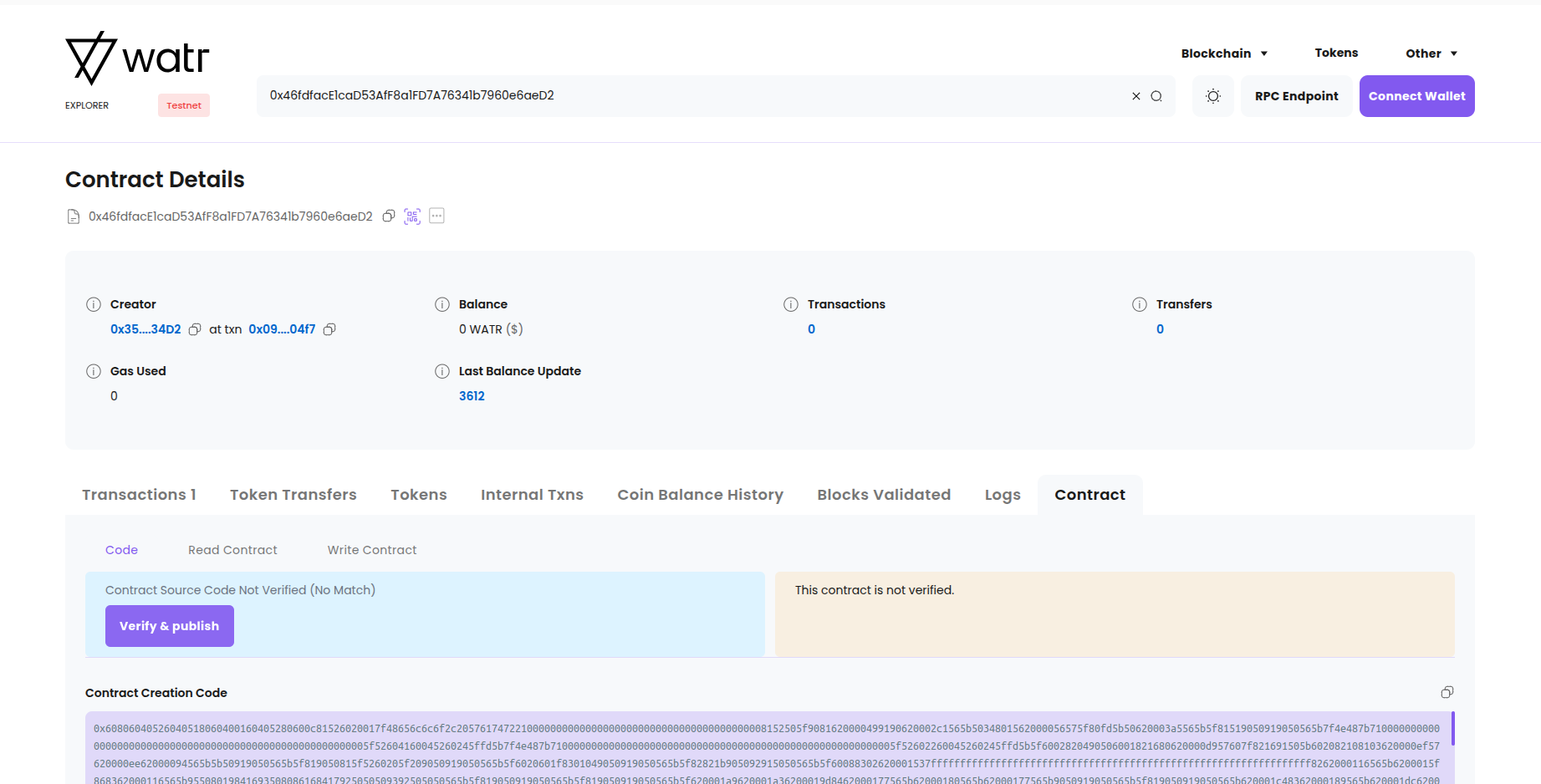
Figure 1: Basic contract details display
- Click "Verify & Publish" to proceed with verification
Step 3: Provide Contract Information
Automatic Fields
- Contract Address: Automatically populated from the address you provided
- Contract License: Select the appropriate license for your contract
Verification Method Selection
Currently, Watr Testnet supports six contract verification methods:
- Solidity (Flattened source code) - Recommended for single-file contracts
- Solidity (Standard JSON input) - For complex multi-file contracts
- Solidity (Multi-part files) - For contracts with multiple dependencies
- Vyper (Contract) - For Vyper language contracts
- Vyper (Multi-part files) - For Vyper contracts with dependencies
- Vyper (Standard JSON input) - For complex Vyper contracts
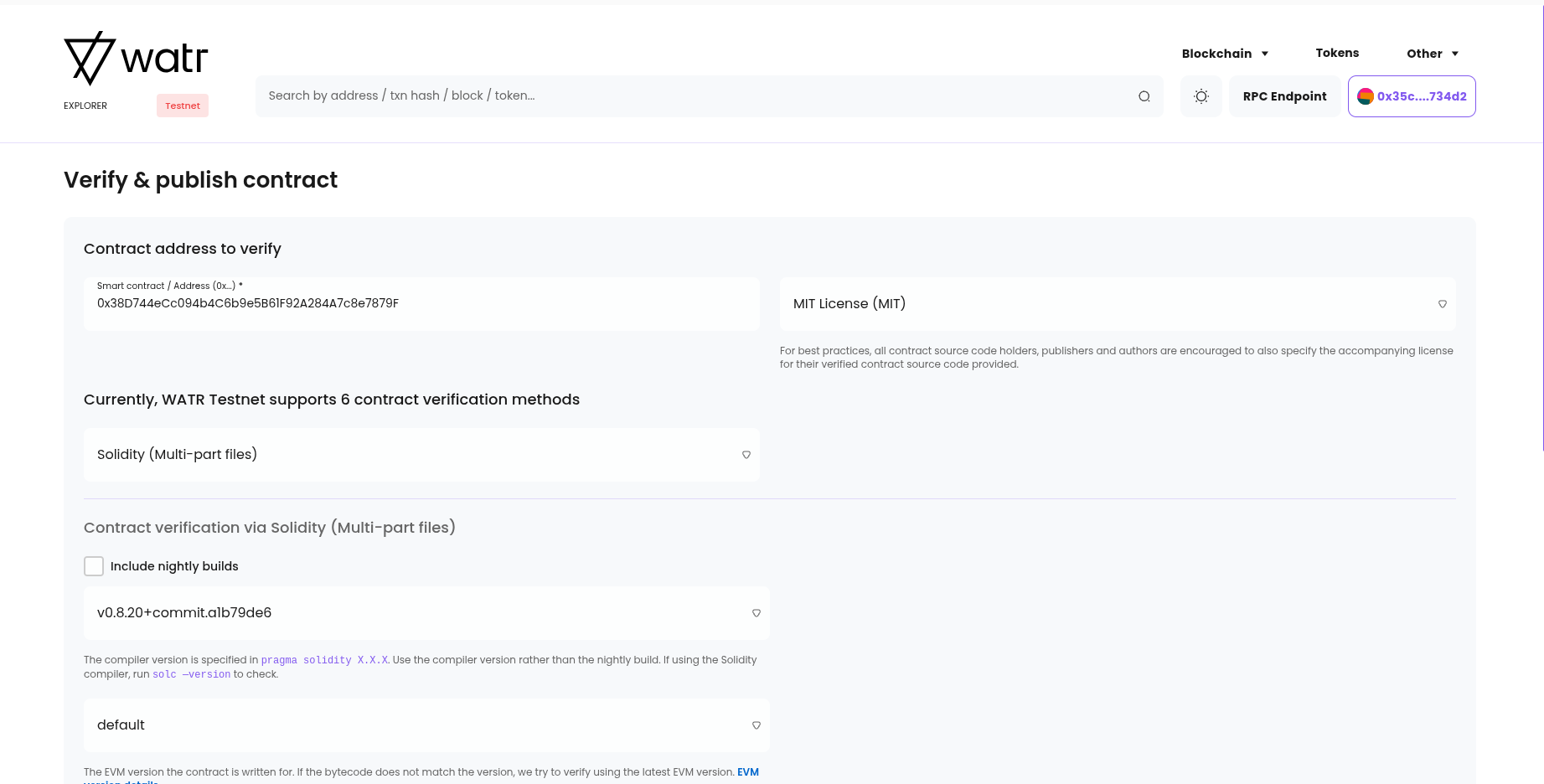
Figure 2: Contract verification configuration
Verification Method Recommendation
For single-file smart contracts without imports, use Solidity (Flattened source code). For contracts containing multiple files, use Solidity (Standard JSON input) or Solidity (Multi-part files).
Compiler Configuration
- Is Yul Contract: Select if your contract uses Yul for optimization
- Include Nightly Builds: Enable for experimental compiler versions
- Compiler Version: Use the version specified in your contract's
pragma solidity X.X.X - EVM Version: Select the appropriate EVM version or use default
- Optimization Enabled: Enable if optimization was used during compilation
- Runs Value: Default is 200 (Solidity Compiler standard)
Contract Source Code
- Solidity Contract Code: Paste your complete smart contract source code
- Contract Libraries: Add any external library dependencies with their names and addresses
Step 4: Submit for Verification
- Review Information: Double-check all provided details for accuracy
- Submit: Click "Verify and Publish" button
- Wait for Processing: The explorer will process your submission
- Check Status: Monitor the verification status
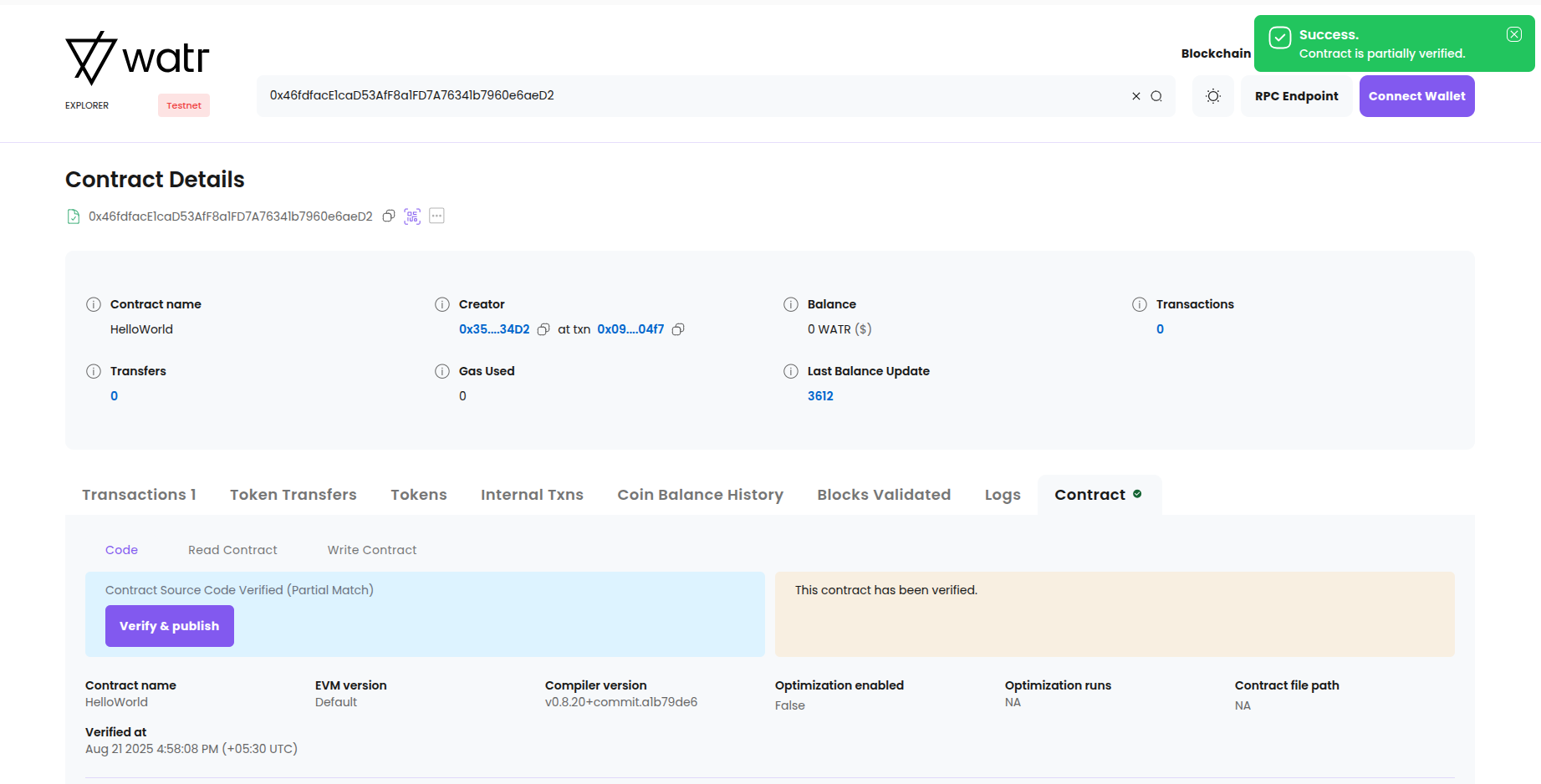
Figure 3: Verification submission process
Troubleshooting
Common Issues
- Compilation Errors: Ensure source code compiles without errors
- Bytecode Mismatch: Verify compiler settings match deployment configuration
- Missing Files: Include all contract dependencies and imported files
- Constructor Arguments: Check ABI encoding of constructor parameters
Getting Help
- Explorer Support: Check explorer documentation for specific guidance
- Community Forums: Seek help from the Watr developer community
- Documentation: Refer to Solidity and blockchain documentation
Important Notes
- Manual verification requires attention to detail and exact matching of compilation settings
- Always verify on testnet before attempting mainnet verification
- Keep backup copies of your source code and compilation settings
- Consider using automated tools like Hardhat when possible for consistency